Gusset is a feet-inch calculator for steel detailing, fabrication and construction. It works offline, needs no account and collects no data. Version 1.0.2.
1. Quick start
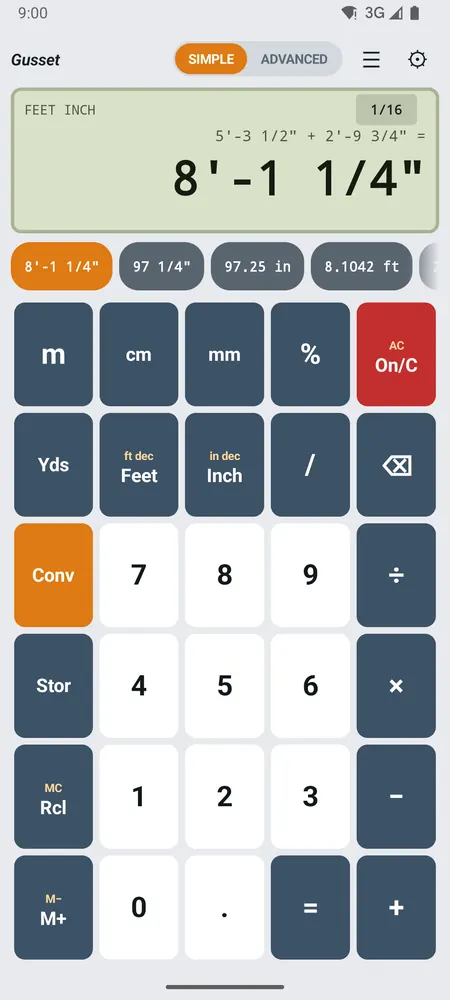
Type a dimension the way it is written on a drawing — number, Feet, number, Inch, fraction — then calculate.
Add two dimensions
5Feet3Inch1/2+2Feet9Inch3/4=
→ 8'-1 1/4"
Convert 1 foot to millimeters: type it, then tap the mm chip under the display
1Feetmm
→ 304.8 mm
Divide 25'-1" into equal spaces no wider than 24": open the menu ☰ at the top, choose Layout / Spacing, type the length, tap Max spacing and type 24
Total: 25Feet1InchMax spacing24
→ 13 spaces · ≈ 1'-11 1/8" each
Hold the big number on the display to copy the result.
The main calculator. SIMPLE shows the everyday keys. ADVANCED (switch at the top) adds three rows of keys for areas and volumes, right triangles and roof pitch, circles, board feet and cost, and a panel that shows the stored values. Everything in SIMPLE works the same in ADVANCED.
2.1 Simple examples
Add
6Feet4Inch1/2+3Feet9Inch3/4=
→ 10'-2 1/4"
Subtract
12Feet6Inch−4Feet8Inch3/8=
→ 7'-9 5/8"
Cut 10'-0" into 3 equal pieces
10Feet÷3=
→ 3'-4"
Four pieces of 2'-7 1/4"
2Feet7Inch1/4×4=
→ 10'-5"
How many 2'-6" pieces in 10'-0"
10Feet÷2Feet6Inch=
→ 4
2.2 Typing dimensions
Feet, inches and a fraction: number Feet, number Inch, then the fraction with /.
1'-1 1/2"
1Feet1Inch1/2
→ 1'-1 1/2"
A number typed after Feet without Inch counts as inches.
2'-0 1/8"
2Feet1/8
→ 2'-0 1/8"
Leave out the bottom number of a fraction and Gusset uses the current resolution (1/16 unless you changed it).
15/16 without typing 16
2Feet15/=
→ 2'-0 15/16"
Inches only, yards and metric work the same way, with Inch, Yds, m, cm and mm.
Inches
30Inch1/2
→ 30 1/2"
Millimeters
25mm
→ 25 mm
Meters
1.5m
→ 1.5 m
Mix units freely; the result keeps the unit you started with.
Feet plus millimeters
2Feet+300mm=
→ 2'-11 13/16"
Typed something wrong? ⌫ deletes the last thing you typed.
2'-7" corrected to 2'-6"
2Feet7⌫6Inch
→ 2'-6"
2.3 Calculating
Gusset works left to right, like a construction calculator: 2 + 3 × 4 = 20.
Left to right
2+3×4=
→ 20
Units are kept: length × length = area, area × length = volume, area ÷ length = length, length ÷ length = a plain number.
Area of a 12' × 10' floor
12Feet×10Feet=
→ 120 ft²
Area ÷ length = length
12Feet×10Feet÷8Feet=
→ 15'-0"
% works like on a shop calculator.
Add 10%
250+10%
→ 275
15% of 80
80×15%
→ 12
2.4 Converting units
Under the display a row of chips shows the same length in ft-in, inches, decimal inches, decimal feet, mm, cm, m and yards. Tap a chip to switch the display. Swipe the row sideways to see all of them. Hold a chip to copy that value.
1 foot in millimeters
1Feetmm
→ 304.8 mm
3 meters in feet-inches
3mft-in
→ 9'-10 1/8"
After a result, Feet turns it into decimal feet; press Feet again for feet-inches. Inch does the same with decimal inches. The small labels over the keys (ft dec, in dec) remind you.
Decimal feet
1Feet6Inch=Feet
→ 1.5 ft
…and back
1Feet6Inch=FeetFeet
→ 1'-6"
Decimal inches
5Inch1/2=Inch
→ 5.5 in
Conv then a unit key converts the display to that unit.
Conv to millimeters
1FeetConvmm
→ 304.8 mm
2.5 Fraction resolution and the ≈ sign
The small badge at the top right of the display (1/16) sets how fine fractions are shown. Tap it: 1/16 → 1/8 → 1/128 → 1/64 → 1/32 → 1/16. Hold it to go the other way. Settings also offer 1/4 and 1/2. Your choice is remembered.
When the exact value does not land on the resolution, the badge shows ≈. Tap to a finer resolution to see what is hidden. Rounding is for the display only — the full value is kept for the next calculation.
10'-0" ÷ 7 at 1/16 (badge shows 1/16 ≈)
10Feet÷7=
→ 1'-5 1/8"
…the same at 1/32 (four taps on the badge)
10Feet÷7=1/161/161/161/16
→ 1'-5 5/32"
2.6 Copying a result
Hold the big number on the display: it is copied exactly as shown, e.g. 1'-6 3/4".
Hold a chip to copy that unit instead.
Settings → Hold-to-copy gives → The bare number copies the plain number in the unit shown (decimal feet for feet-inches, decimal inches for inches) — handy for pasting into a model.
Shown as 1'-6 3/4"
1Feet6Inch3/4=
→ 1'-6 3/4"
2.7 Memory
Stor puts the display into memory (replacing what was there). M+ adds the display to memory; ConvM+ (M−) subtracts. Rcl shows the memory. M on the display means something is in memory. ConvRcl (MC) clears it.
Press Rcl again for the average, and again for the number of items — useful for totaling a column of dimensions.
On/C once clears the number you are typing; twice clears the calculation.
Hold On/C (or ConvOn/C, marked AC) to clear everything, including memory and stored values.
⌫ deletes the last thing you typed.
2.9 Tape (calculation history)
Menu ☰ → Tape: your finished calculations, newest first (up to 200). Clear empties it.
In landscape the tape is always visible next to the display — tap it to open the full list.
2.10 ADVANCED: area, volume and walls
Type a value and press Length, Width or Height to store it. Then press a key with nothing typed: Width gives the area (L × W), Height the volume (L × W × H), and Height again the wall area (perimeter × H). The panel under the display shows all of them; stored values stay there until you hold On/C.
To type an area or a volume directly, type the number and its unit key, then hold the unit key (once for square, again for cubic).
2.11 ADVANCED: right triangle and roof pitch
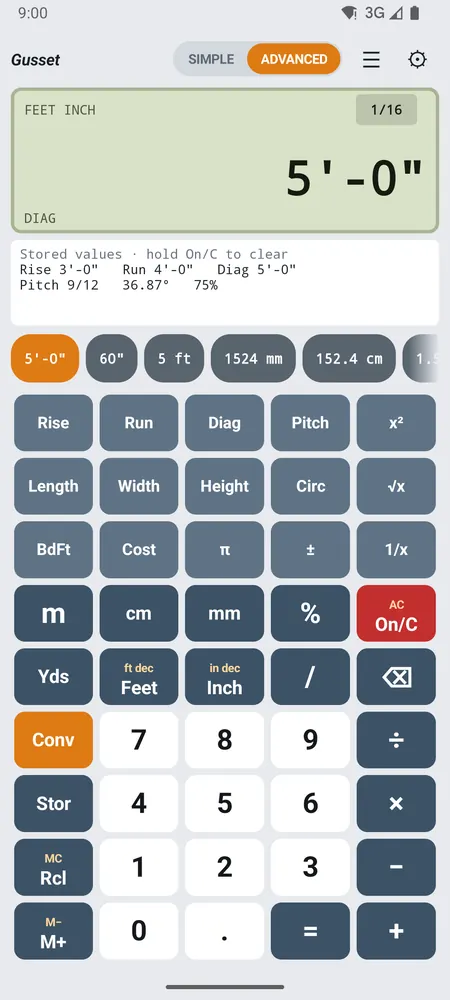
Store any two of Rise, Run, Diag and Pitch (type the value, press the key). Then press any of the four to read it. The panel shows all sides, the pitch (x/12), the angle and the slope in %.
Rise 3'-0" and run 4'-0" → diagonal
3FeetRise4FeetRunDiag
→ 5'-0"
…the panel shows the pitch
3FeetRise4FeetRunDiag
→ 5'-0"
panel: Pitch 9/12 36.87° 75%
Pitch is typed as inches of rise per foot (Inch then Pitch: 6 Inch Pitch = 6/12) or as degrees (a plain number then Pitch).
6/12 pitch over a 12'-0" run → rise
6InchPitch12FeetRunRise
→ 6'-0"
30° and a 10'-0" diagonal → rise
30Pitch10FeetDiagRise
→ 5'-0"
ADVANCED: rise 3'-0" and run 4'-0" stored — the panel shows the diagonal, the pitch and the angle
2.12 ADVANCED: circle
Type the diameter and press Circ for the circumference. The panel also shows the radius and the area.
10" diameter
10InchCirc
→ 31 7/16"
…the panel shows the area
10InchCirc
→ 31 7/16"
panel: Area 78.5398 in²
2.13 ADVANCED: board feet and cost
BdFt gives board feet from the stored Length × Width × Height, or from a volume on the display (1 board foot = 144 cubic inches).
8'-0" × 6" × 2"
8FeetLength6InchWidth2InchHeightBdFt
→ 8 BdFt
Cost: with a quantity on the display, type the price per unit and press Cost.
8 board feet at $4.25
8FeetLength6InchWidth2InchHeightBdFt4.25Cost
→ 34 COST
12 feet at $3.50 a foot
12Feet=3.5Cost
→ 42 COST
2.14 ADVANCED: x², √x, 1/x, π and ±
x² squares the display (a length becomes an area); √x takes the square root (an area becomes a length).
Square a length
6Feetx²
→ 36 ft²
1/x divides 1 by a plain number, π enters 3.14159265, ± changes the sign.
A second calculator for dividing a length into equal spaces — bolt holes, stiffeners, studs, joists, balusters. It gives running dimensions: every mark measured from the same end, so rounding never adds up along the run. Open it from the menu ☰ at the top → Layout / Spacing.
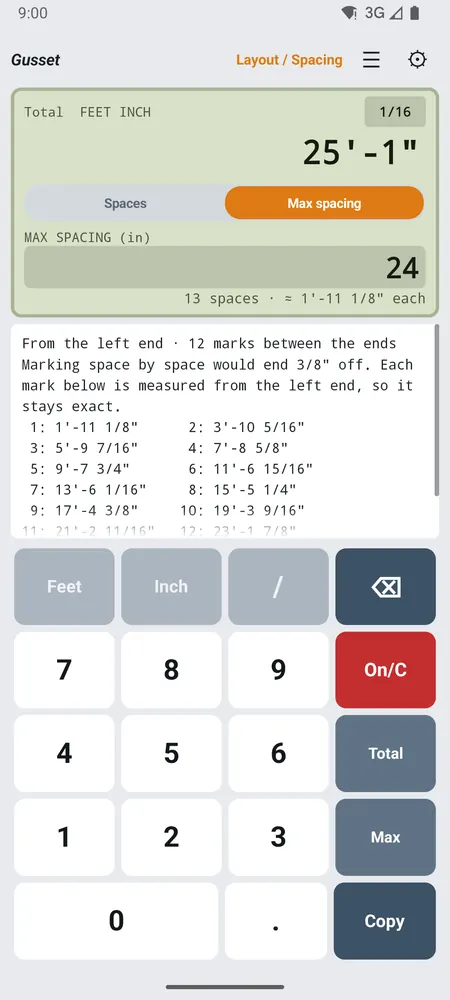
Layout / Spacing: 25'-1" with spaces of 24" or less
3.1 Simple examples
25'-1" into spaces no wider than 24"
Total: 25Feet1InchMax spacing24
→ 13 spaces · ≈ 1'-11 1/8" each
list: 1: 1'-11 1/8" · 2: 3'-10 5/16" …
21'-6" into 12 equal spaces
Total: 21Feet6InchSpaces12
→ 12 spaces · 1'-9 1/2" each
list: 1: 1'-9 1/2" · 2: 3'-7" …
3.2 Total
Total is the length to divide, typed exactly like on the calculator (Feet, Inch, /). Total is ready when you open Layout / Spacing — just type the length.
A length on the calculator display comes over into Total. To divide that one, simply tap Spaces or Max spacing; to divide another length, type it — it replaces the old one.
To change the length later, tap the Total box (or the Total key) and type the new one.
3.3 Spaces
Tap Spaces and type how many equal spaces you want (1 to 500). A new number replaces the old one.
3.4 Max spacing
Tap Max spacing and type the largest spacing allowed. Gusset uses the fewest equal spaces that stay within it.
Max spacing is in inches when Total is in feet or inches, and in the Total's own unit when it is metric (the label shows which).
3.5 Reading the list
The summary under the number says how many spaces and how wide each one is.
Each entry is one mark, measured from the left end: 1: 1'-11 1/8". The marks run in order — left to right, row by row.
A longer list goes on below the edge of the panel: the bottom edge fades out — scroll the panel for the rest. The last mark is always the Total.
≈ means the spacing is rounded to the current resolution. If marking space by space (chaining) would miss the far end, the panel says by how much, above the list — measuring every mark from one end avoids that.
The resolution badge works here too.
3.6 Copy
Copy puts the whole list on the clipboard, ready to paste into a message or a spreadsheet.
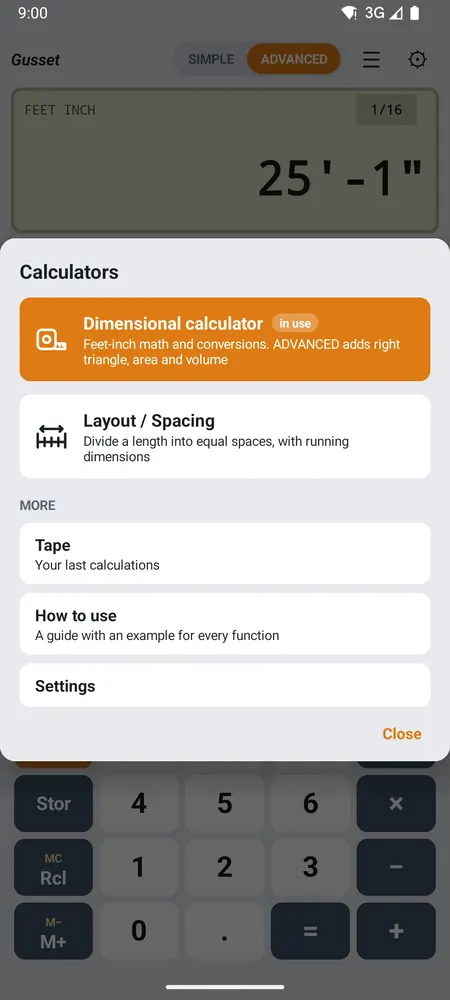
The menu ☰ at the top lists the calculators (the one you are using is marked in use), the Tape, this guide and Settings.
The phone's Back returns from Layout / Spacing to the Dimensional calculator.
The menu ☰: calculators, tape, guide and settings
Gusset opens on the calculator you used last. The display, the memory, the tape and the Layout numbers are kept when you close the app; stored Length, Width, Height and triangle values start fresh.
Gusset works offline, needs no account and collects no data. A question, an idea or a bug — write to [email protected]. The guide with pictures: northwit.app/gusset/help.